Posts

RSS feed reader options - the saga continues

Image
When Google Reader was retired, I posted about my search for a replacement . Eventually I settled on TheOldReader .   This had a few headaches - too many other people made the same choice, so they had performance problems.  Then they were going to shut down.   They they got help and weren't shutting any more.   Now they've siaid that only the first 100 subscriptions are free, and that people need to pay to have more than this.   The design still looks a bit clunky. I may yet end up paying them $30/year - it's not unreasonable for the service.   But OTOH, I don't see paying a small amount for any service as a guarantee that it will actually survive. But in the meantime, I'm hunting for options again.    Here's some info about what I've tried. InoReader The first tool that has caught my eye is InoReader .   It is ... a  Cloud based   RSS Reader  aimed to fully replace  Google Reader   and even provide additional tools a...

Setting up Google Analytics for a 2nd or later blog

Image
This article is about how to set up Google Anaytics to work on subsequent Blogger sites, if you have already set it up for your first blog or website. If you already have Google Analytics set up, then the process is a little different to setting it up for your first blog (which is nicely described by GreenLava over on BloggerSentral ) - because you already have a Google Analytics account, which you must add a new web property to. How to set up Google Analytics for a subsequent blog Log into Analytics using the Google Account which you use for Analytics overall (ie which you used for your other blogs or websites). Choose the Admin tab  (currently linked from near the right on the orange menu bar) From the drop-menu under Property , choose Create a New Property Choose Website (it's the default) Choose whether to use Universal Analytics (currently still beta) or Classic Analytics. (I've chosen Universal for the blog that I've just set up - will be interesting to see h...

AdSense Direct: A new way to sell direct advertising on your blog

Image
This article introduces AdSense Direct, a new way to use AdSense to manage advertising that you directly sell ads on your blog or website - and to fill those spaces with AdSense ads when there are no Direct ads running. AdSense have announced a new feature called AdSense Direct, which will let AdSense publishers (ie people showing ads on their blogs or websites) manage directly-sold ads using their AdSense account. "Management" means that after an advertisement and campaign details are set up and approved, the ads will show on your site without any changes to your site (apart from having AdSense ads in on it), and having all contracts, invoicing and payments handled through your AdSense account. How to use AdSense Direct Arrange a direct deal with an advertiser -- this can be any advertiser, even one that doesn't currently use AdWords. Enter the details into your AdSense account; more details about this here . You will be given a link which you email (etc) to the adverti...

Putting a picture on your blog as a Gadget

Image
You can put a picture anywhere in your Blogger blog that you can insert a gadget - and you can make it link to a post in your blog or to any other website. The Image gadget Dry dock in Claddagh Basin A very simple way to put a picture into your blog is to use an Image gadget (previously called a Picture gadget). This is a tool that Blogger provides to make is easy to add a picture that shows up on all screen and is linked to somewhere. Often gadgets (sometimes called widgets or page elements) are put on the sidebar - but in many blogger templates they can go in other places too (header, footer, etc). Follow these steps to add a picture gadget in Blogger 1  Make sure you know where the original picture is  and that you have copyright permission to use it . 2  Copy the location (URL or file system full path-name) of the picture - and remember whether it's on your computer, or on the internet. ( This article tells you how to find the URL of a picture that's alread...

Google use Google-Sites, so we should too!

Image
This QuickTip explains why I now feel happier about using elements from Google Sites in my blogs. What is Google Sites, and why would a Blogger use it Long ago (back in the late 2000's) there was a product called Google Pages, which people could use to make their own simple websites. It wasn't the greatest product that Google ever made (or purchased), and eventually it was retired, with websites made with Pages transferred over to the newer Google Sites . Sites always seemed a bit clunky. It doesn't seem to have a huge number of users.   And there are vastly better products for building more-complex websites, and for building simple ones (eg using Blogger to make a "real" website ). Now, I did use a Sites filing cabinet as the document-store for one of my sites that makes lyrics of certain public domain songs available in PowerPoint format. I chose it before Google Drive had been released, and when Docs was not nearly as good as it is now. And SEO does ...

Delete, change or re-format the "Showing posts with label" message.

Image
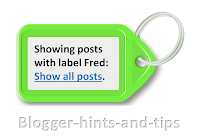
This article explains options for deleting, or changing the content or formatting of Blogger's "Showing posts with  LABEL.  Show all posts" message and it's ugly grey box. If your blog has a Layout or Designer template , then when a person who is reading it chooses a label value, Blogger displays a page with (a summary of) your most recent posts with that label. If there are more posts that Blogger is willing to show on one page, then there will also be "older posts" and "newer posts" links at the bottom of the page. And - unless you have removed it - there will also be a message at the top of the page saying "Showing posts with label yourLabel. Show all posts " Reader actions that cause a visitor to see this message include: Clicking a value in your Label gadget Clicking a label value that is displayed in your post header or footer (unless you have turned them off in the Layout > Blog Posts edit option). Clicking a link that you have...

How to show AdSense ads that are non-standard sizes

Image
This QuickTip is about AdSense's new custom-size-advertisement option, which lets you choose the height and width of each advertisement that you show on your site. Today, AdSense announced that we can now make ad-units in any size that we want - within certain restrictions.   They don't use the phase in the text of their announcement, but the post-URL for their says that this feature is  " the-next-evolution-of-responsive-ads " - so I guess it can be seen as part of the efforts to cater to mobile-readers and mobile site-publishers, even though these ads themselves don't adapt to according to the size of your visitor's screen. What will custom-size text ads look like: For text ads, AdSesne, will work out the best number of text ads to show in each ad-block, and the individual ads will be shown the same way they that the look inside the standard ad-sizes. Note that they say "For unique ad unit sizes, our system will need some time before it can optimize th...